Why re-adding the file goes wrong
Adding an .ics file only ever adds events. Nothing on the iPhone compares it with the version you added last time, so:
- Shifts that were dropped stay in your calendar. The new file simply doesn't mention them, and nothing deletes them.
- Moved shifts can show up twice: at the old time and at the new one.
- Unchanged shifts can end up duplicated, depending on the app that adds the file.
The more often the schedule changes, the worse it gets. Crew, nurses, doctors and anyone on a rota that's published monthly and then amended runs into this.
Option 1: subscribe, if you're given a link
If your employer, rostering app or university gives you a calendar link (it often starts with webcal:// or ends in .ics), subscribe to it instead of importing a file. The calendar then updates itself: Settings › Calendar › Accounts › Add Account › Other › Add Subscribed Calendar. On iOS 18 and later, Calendar is under Settings › Apps.
Subscribed calendars are read-only, refresh on their own schedule (sometimes hours late) and can't hold your own notes or reminders. If you only get a file, or the feed isn't reliable, read on.
Option 2: give the schedule its own calendar and rebuild it
Free, and it works with any file:
- In Calendar, tap Calendars, then Add Calendar, and name it after the schedule, like "Roster".
- Always add the schedule's file to that calendar and nothing else.
- When a new version arrives, delete that calendar (Calendars › the ⓘ next to it › Delete Calendar), create it again, and add the new file.
The downside: everything in that calendar goes, including past months, reminders you set on shifts, and anything you added by hand. It also doesn't show you what actually changed.
Option 3: replace only what changed
I built ICS Import for this. Open the new version of the file and it recognises the schedule you imported before:
- Tap the new
.icsfile in Mail, Gmail, Outlook, WhatsApp or Files, tap Share, then ICS Import. - ICS Import shows "New version of" your earlier import, with a count of new, changed, removed and unchanged events. Removed shifts are listed so you can check them first.
- Tap Update Calendar.
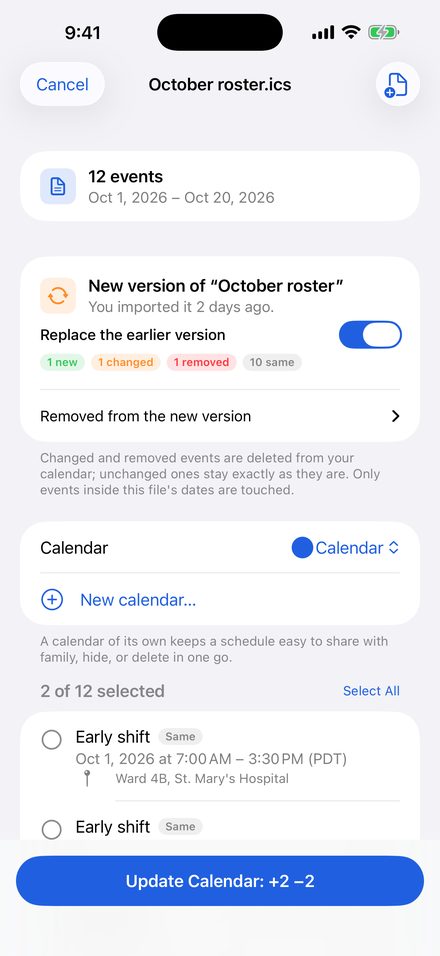
Only new, changed and removed events are touched. Unchanged shifts stay exactly as they are, with your reminders and edits. Only the dates the new file covers are affected, so importing next month's roster never deletes this month's. If something looks wrong, Undo in the app removes everything an import added.
It reads the file on your phone, with no airline, hospital or school login and no account. Adding up to 3 events per import and Undo are free. Replacing a whole schedule is a one-time purchase, with no subscription.
Get ICS ImportTips for rosters that change a lot
- Keep the file name the same if you rename files before importing. ICS Import uses the events' IDs and the file name to spot a new version of the same schedule.
- Night shifts that cross midnight keep their real start and end, and repeating events keep their repeat rules and skipped dates.
- Airline crew? See FLICA or iCrew roster in iPhone Calendar.
- Times hours off? Files from Outlook or Exchange often use Windows time zone names. See Outlook .ics events show the wrong time on iPhone.
Still stuck?
Email mybosseatpoop@gmail.com with both versions of the file attached and I'll take a look.