Why re-importing a roster goes wrong
An .ics file only adds events. Nothing on the iPhone knows the new download replaces the old one, so every re-import stacks on top of the last. Crew apps run into the same limit. CrewLounge's own help says a second ICS export "creates double events in your calendar", and that you have to delete everything by hand before importing again. Flight Crew View's help says that without full calendar access, dropped trips can't be deleted.
Why a file instead of a roster app login
Many roster apps work by logging in to the crew portal with your username and password. Airlines and FLICA have been moving to block that. Flight Crew View now asks FLICA users to log in in Safari themselves and export the .ics file, and some pilot groups have been told that handing credentials to a third party breaks the company's security rules. Downloading the file yourself, from your own login, avoids that question entirely.
Step 1: download the schedule file
- FLICA (used by Alaska, Hawaiian, JetBlue, Frontier, Endeavor, Republic, PSA, WestJet and others): log in to the FLICA website in Safari and use its calendar or
.icsexport for the month. - Delta iCrew: use Download Schedule on the iCrew website.
- Any other system that gives you an
.icsfile works the same way. A PDF roster doesn't: it has to be an.icsfile.
On iPhone the file usually lands in Downloads in the Files app. If you download it on a computer, email it to yourself or AirDrop it to the phone.
Step 2: import it
- Tap the
.icsfile in Files or Mail, tap Share, then ICS Import. - Pick a calendar. A calendar of its own, like "Trips", lets you hide your roster in one tap or share it with family.
- Tap Add.
Step 3: after a trade, drop or pickup, import the new file
- Download the schedule again and open it in ICS Import the same way.
- ICS Import shows "New version of" your earlier import, with how many trips are new, changed, removed and unchanged. If Replace is off, turn on "Replace the earlier version". Removed trips are listed, so you can check them before anything is deleted.
- Tap Update Calendar.
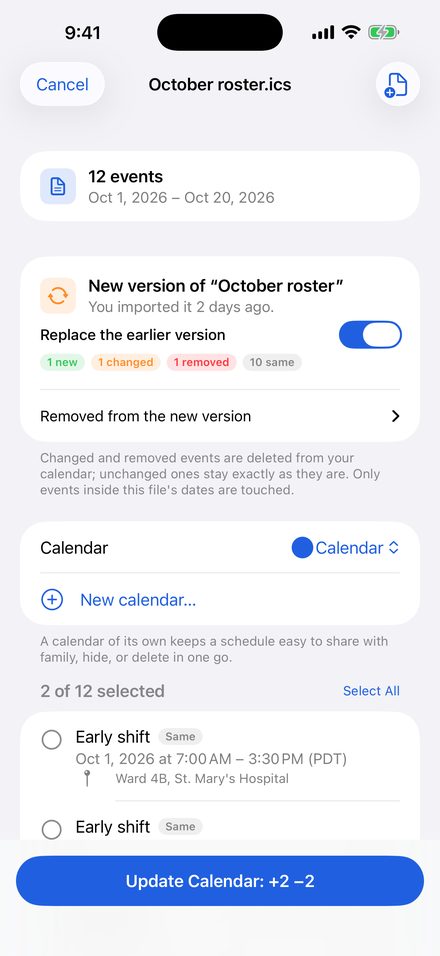
Only new, changed and removed events are touched. Unchanged trips keep any reminders or notes you added. Only the dates the new file covers are affected, so importing next month's schedule never deletes this month's. If an import goes wrong, Undo removes everything it added.
Get ICS ImportAdding up to 3 events per import and Undo are free. Whole rosters and Replace are one purchase, no subscription. The file is read on your phone, nothing is uploaded, and there's no account.
Keep times right when you cross time zones
iPhone Calendar shows events in the time zone you're in, so report times move when you land somewhere else. To keep everything in your base time, turn on Time Zone Override and pick your base: Settings › Calendar › Time Zone Override (on iOS 18 and later, Settings › Apps › Calendar).
Still stuck?
If your schedule file doesn't come through right, email mybosseatpoop@gmail.com with the file attached (remove anything you'd rather not share) and I'll fix the import.