Step 1: find the calendar link or file
- Canvas: open Calendar in the left-hand menu, then click Calendar Feed (bottom right) and copy the link. The feed holds assignments and course events. Your class timetable may come from a separate university system.
- Moodle: open the Calendar, then Import or export calendars › Export calendar. Choose the events and time period, then use Get calendar URL for a link or Export for a file.
- Brightspace (D2L): open Calendar and use Subscribe to get a link.
- Blackboard: open Calendar and look in its settings for the option to share or sync the calendar. It gives you a link.
- University timetable systems (often a separate "My timetable" page): look for Subscribe, Add to calendar, iCal or Download
.ics.
A link usually starts with webcal:// or https:// and often ends in .ics. A file is something you download, usually into Downloads in the Files app. A PDF timetable can't go into Calendar this way.
Step 2a: you have a link, so subscribe
- Copy the link.
- Go to Settings › Calendar › Accounts › Add Account › Other › Add Subscribed Calendar. On iOS 18 and later, Calendar is under Settings › Apps.
- Paste the link and tap Next, then Save.
The calendar now updates itself, so you don't need an app. The catch: subscribed calendars are read-only, refresh on Apple's schedule (sometimes hours late), and you can't add your own notes or reminders to classes. Some exports, like Moodle's, also only cover the period you picked.
Step 2b: you have a file, so import it into its own calendar
- In Calendar, tap Calendars › Add Calendar, and name it after the timetable, like "Classes".
- Tap the
.icsfile in Files, Mail or Outlook, tap Share, then ICS Import. - Pick the "Classes" calendar and tap Add.
A calendar of its own lets you hide the whole timetable in one tap or remove it at the end of term. If iPhone opens the file but won't add the events, see iPhone won't add an .ics file to Calendar.
Step 3: the timetable changed, so replace it
A room moves, a lecture is cancelled, a new term starts, and you get a new file. Adding it on top of the old one doubles every class and leaves cancelled ones in your calendar, because adding an .ics file only ever adds events.
Free way: delete the "Classes" calendar (Calendars › ⓘ › Delete Calendar), create it again, and import the new file. You lose any reminders or notes you added to classes.
With ICS Import: open the new file the same way. ICS Import recognises it as a new version of your timetable and shows how many classes are new, changed, removed and unchanged. Tap Update Calendar.
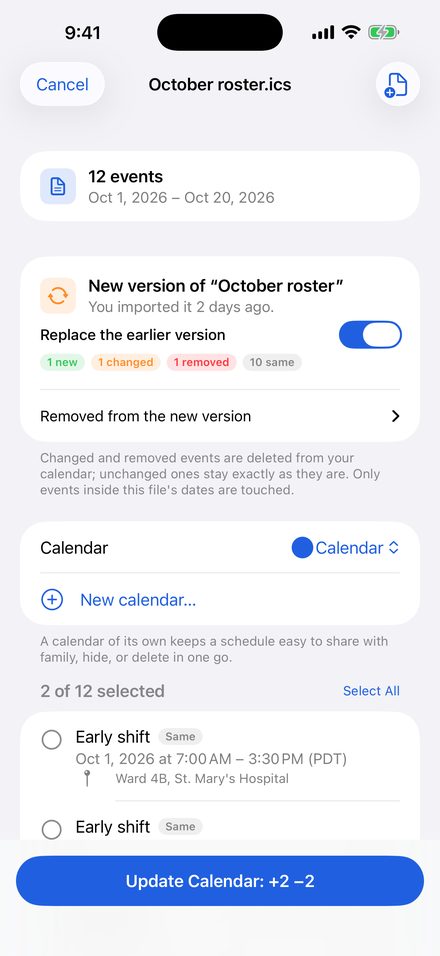
Only new, changed and removed classes are touched. Unchanged ones keep your reminders and notes. Only the dates the new file covers are affected, so importing next term never deletes this term. If an import goes wrong, Undo removes everything it added.
Get ICS ImportI built ICS Import. Adding up to 3 events per import and Undo are free. Whole timetables and Replace are one purchase, no subscription. The file is read on your phone, there's no university login and no account, and nothing is uploaded.
Common questions
How do I add my university timetable to my iPhone calendar?
If your university or learning platform gives you a calendar link, subscribe to it (Step 2a). If you only get a downloaded .ics file, import it into a calendar of its own (Step 2b), and replace it with the next version instead of adding it again (Step 3).
Should I subscribe to my timetable or import the .ics file?
Subscribe when you have a link: it updates itself, though it's read-only and can refresh hours late. Import the file when you only get a download, when the feed is unreliable, or when you want to add your own notes and reminders to classes.
Why are my classes duplicated after importing the timetable again?
Adding an .ics file only ever adds events. iPhone Calendar doesn't compare it with the version you added before, so re-importing a changed timetable stacks a second copy on top and leaves cancelled classes behind. Delete the timetable's calendar and import again, or use ICS Import, which replaces only the classes that changed. More in Update a schedule in iPhone Calendar without duplicates.
How do I remove an imported timetable from iPhone Calendar?
If you imported it into a calendar of its own, delete that calendar: Calendars › ⓘ next to it › Delete Calendar. If you imported it with ICS Import, use Undo on that import. It removes everything the import added and nothing else.
My classes show at the wrong time
Timetables exported from Outlook or Exchange often use Windows time zone names that iPhone misreads. See Outlook .ics events show the wrong time on iPhone.
Still stuck?
Email mybosseatpoop@gmail.com with the timetable file attached (remove anything you'd rather not share) and I'll take a look.